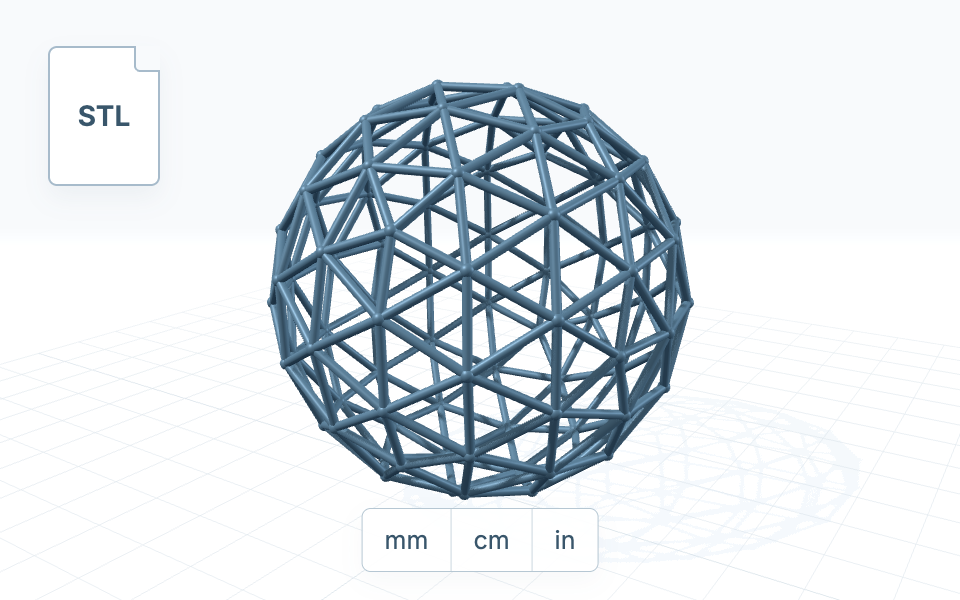
1. Choose an STL and check its units
Select a local STL file and choose millimeters, centimeters, or inches. Check whether its openings are intentional. If the mesh needs repair, inspect it with STL Fixer first.
Use this converter to turn an STL file into a STEP (STP) exchange file. It creates faceted geometry from the triangle mesh; it does not restore original sketches, features, fillets, or design history.
Processing depends on the model and available browser memory. Conversion can stop without a download if required checks do not pass. A completed file still needs review in your CAD application.
Illustrative steps using the same example mesh.
Select a local STL file and choose millimeters, centimeters, or inches. Check whether its openings are intentional. If the mesh needs repair, inspect it with STL Fixer first.
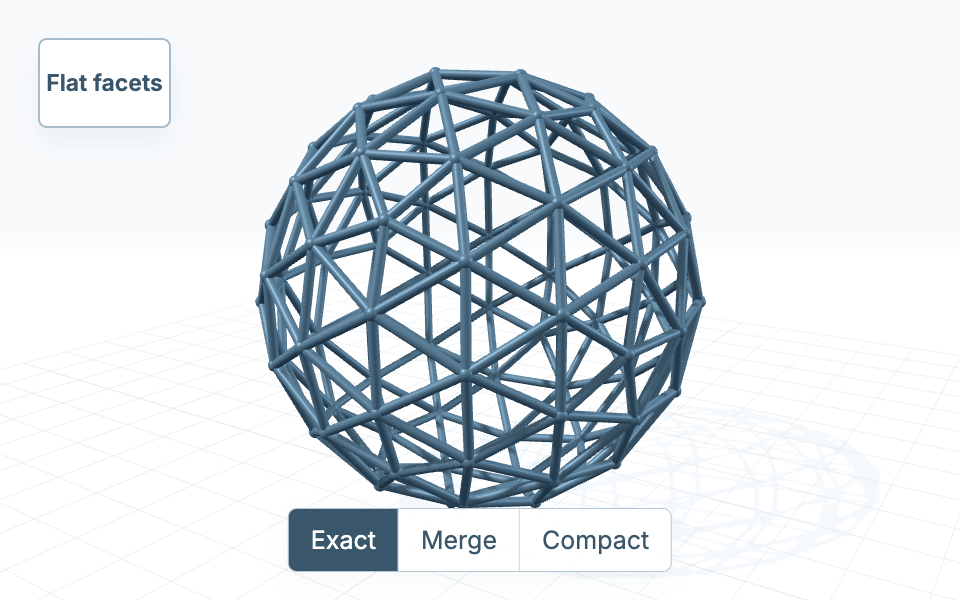
Use Exact to keep triangle geometry, Merge Coplanar for exact planar merging, or Compact for checked reduction. For Compact, enter a positive maximum deviation in the selected source unit.
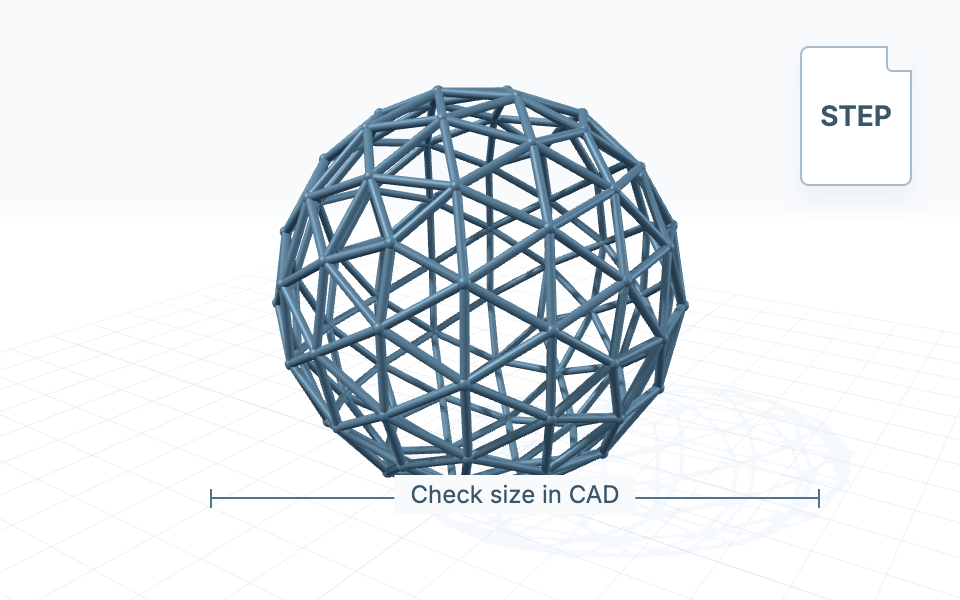
Run the required checks, then download STEP when the result is ready. In your CAD app, verify the body type, a known dimension, and the edit you need.
Convert mesh to STEP as flat faces and straight edges. A rounded outline remains an approximation of the source mesh.
Choose the source unit and check a known dimension after conversion. The unit choice changes how coordinates become physical size.
The file does not restore original sketches, fillets, or design history. For editable features or fitted surfaces, plan separate reconstruction.
Check what STL-to-CAD conversion can preserve and when rebuilding is the better next step. STL to STEP: editable CAD or faceted geometry?
Inspect open boundaries, face direction, and duplicate geometry before changing the original. Start with non-manifold edges or flipped normals.
Some CAD operations may work with faceted geometry, depending on the application and body type. Conversion does not restore the original sketches or feature history. Test the specific edit you need in your CAD application.
The mesh can retain a hole's outline, but this converter does not reconstruct its original editable hole or circle feature. Smooth curves and new parametric features require separate modeling or reconstruction.
This converter writes valid closed geometry as solid bodies and valid open geometry as a surface model. Inputs that fail required checks produce no download. Check the body's reported type in CAD; a shaded preview alone does not identify the stored representation.
Use conversion when a faceted exchange file supports your next task. Rebuild when you need new sketches, fitted surfaces, or editable features that the faceted body cannot provide. Check the required operation before deciding.
The model is processed in your browser and is not sent to a conversion server. The page and CAD-engine resources still load over the network. See the privacy notice for other website and analytics requests.