Convert the model geometry in a supported 3MF file into a binary STL. Check dimensions and part placement before downloading; colors, materials, and slicer settings are not included.
Convert 3MF to STL Online
100% local · no model upload
One 3MF · Up to 50 MB (50,000,000 bytes) and 1,000,000 expanded triangles. Desktop Chrome tested; Safari and mobile devices have not been verified. Complex files can exceed browser memory or processing limits.
No file selected
One build, one STL. All supported instances keep their positions. Parts are not fused, repaired, or simplified. Colors, textures, materials, thumbnails, and print settings are discarded. Projects with modifiers, negative volumes, multiple plates, or unclear geometry settings are not supported.
JavaScript is required for local 3MF conversion.
Working on your file. You can cancel at any time.
Your STL is ready
Source unit
Output unit
Millimeters
Dimensions
Instances
Triangles
STL size
STL does not store a unit label. Open it as millimeters in your slicer and check dimensions, orientation, and layer preview. Conversion does not guarantee a successful print.
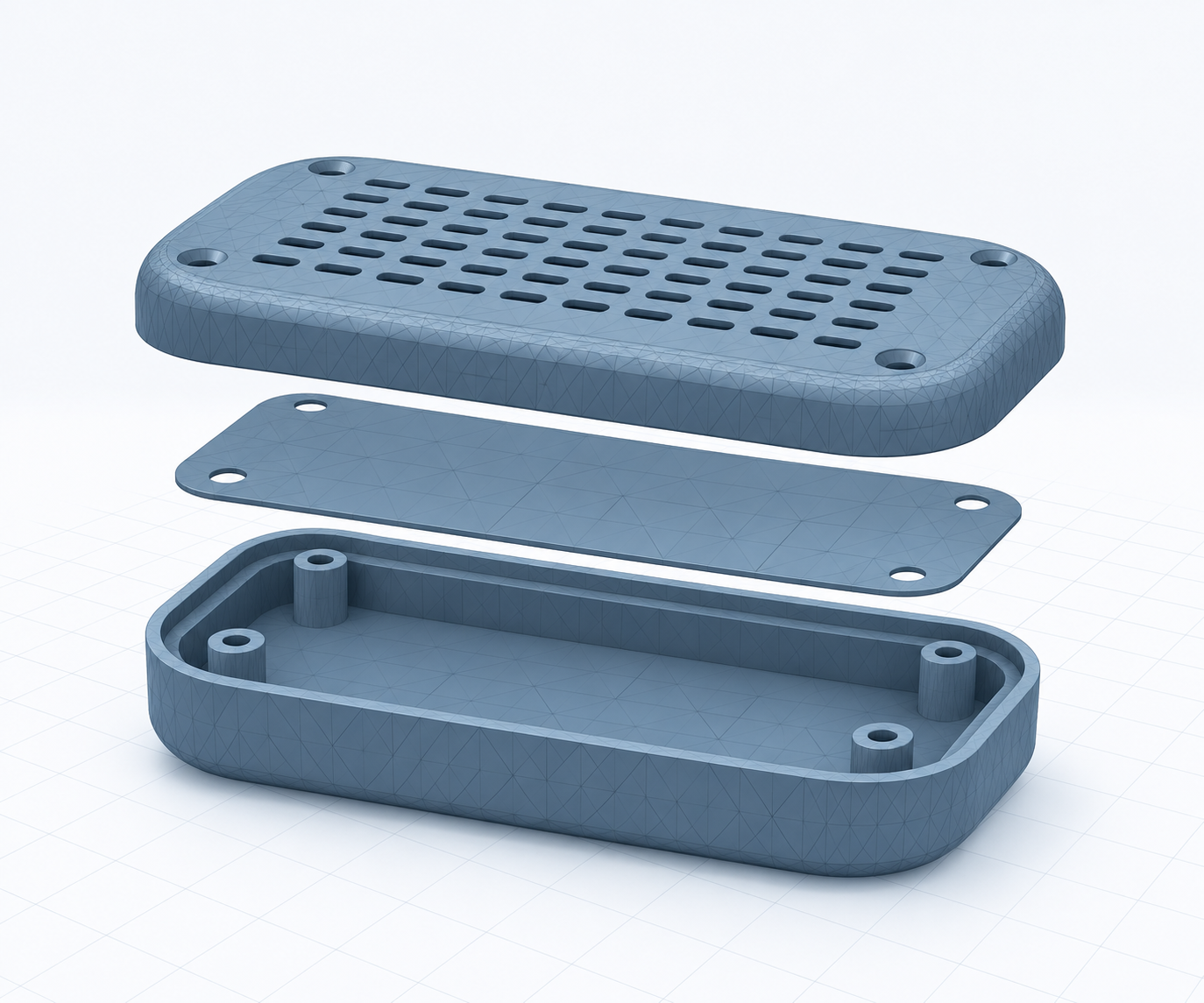
Illustrative enclosure
Illustrative enclosure only. Choose a 3MF file to preview your own model.
Source unit
Dimensions
Instances
Triangles
Keep your original 3MF. The STL contains geometry only, and supported parts remain separate surfaces in one file.
How to Convert 3MF to STL
1. Choose your 3MF file
Drop one file into the tool or select Choose 3MF file. Ordinary triangle models, nested components, and supported references within the package can be converted. The tool uses the effective build scene, so objects stored in the resource library but not used in that scene are left out. The source size and expanded triangle limits both apply; a small compressed file can still describe a large scene.
2. Review the model and output
Selecting a file automatically shows its model preview. Read the output scope, then select Convert to STL. Source units are read automatically, with undeclared units treated as millimeters. The result shows dimensions in millimeters, instance count, and complete triangle count. Rotate the actual result preview to inspect part placement. Large previews may be sampled and are labeled; the download retains the full output.
3. Convert, download, and verify
Download STL saves one binary file containing all supported build instances. Check it in your slicer before printing, including units, wall thickness, placement, and layer preview. Cancel or choose another file to discard the current result. If conversion fails, read the reason and try again or export STL from the original application. No account, software installation, or model upload is required.
What Your STL Keeps and Leaves Behind
Model surfaces and instance positions
The converter keeps supported triangle surfaces and applies each instance’s translation, rotation, and scale. Multiple instances retain their relative positions and gaps. Writing them to one STL does not perform a Boolean union or fill holes. If you need a single fused solid or separate files per part, prepare and export that result in your modeling software.
Dimensions and units
The source model’s declared unit is converted into millimeter coordinates, including instance placement. The page reports source units and complete output dimensions so you can compare them with the original. STL has no standard unit label: tell your receiving software to use millimeters. Mixed units across model files in one package are rejected instead of being guessed.
Appearance and project settings
STL retains triangle geometry rather than 3MF’s colors, textures, materials, thumbnails, or printing presets. This converter discards that information. Only a small, checked subset of harmless print settings is accepted; other project settings can change the meaning of the scene and are rejected. Keep the original 3MF whenever you need the original appearance or editable project state.
Common 3MF to STL Problems
A project will not convert
Bambu Studio, PrusaSlicer, and OrcaSlicer projects can contain modifiers, negative volumes, plate selections, and other software-specific instructions. This tool does not claim general compatibility with those projects. Open the file in the original slicer, finish any geometry operations, and export the intended plate or model as STL. Prusa’s export instructions explain model and plate exports.
Parts look missing or misplaced
Compare instance count, dimensions, and placement with the original build. Unused resource objects are deliberately omitted, and this tool does not move parts onto a common platform. A sampled preview may omit small surfaces, so inspect the complete downloaded STL in your slicer. If the file uses unsupported scene semantics, export the desired geometry from the original application.
The STL is larger or needs checking
A binary STL writes one record per expanded triangle. Repeated instances each add their triangles to the output, while a compressed 3MF can share geometry and compress its data. Output size can therefore grow without adding detail. The converter does not repair mesh problems; use the STL repair tool to inspect supported issues and check the final file in your slicer.
3MF to STL FAQ
Do I need to convert my 3MF file to STL?
Only if the receiving software or workflow needs STL. Keep 3MF when you need information that STL cannot preserve, and keep your original file for future edits.
Will colors, materials, and print settings be preserved?
No. The STL contains triangle geometry only. Colors, textures, materials, thumbnails, and printing presets are not included.
Does one STL file fuse all the parts together?
No. Supported instances are written into one file with their positions preserved. This does not Boolean-fuse parts, repair surfaces, or produce separate downloads for each object.
Why will my Bambu Studio or PrusaSlicer project not convert?
Projects may contain negative volumes, modifiers, multiple plates, or ambiguous geometry settings. Open the project in its original software and export the intended model or plate as STL. General Bambu, Prusa, and Orca project compatibility is not claimed.
Is my 3MF file uploaded?
No. Model reading and conversion run in your browser, and your model is not sent to a conversion server. The site still loads program resources and may collect website analytics according to your privacy choices. See the Privacy Policy.
We use optional cookies to understand how this website is used. Accept to allow cookies, or close to decline. Privacy policy